This post includes an affiliate link. That means if you buy after clicking it I get a cut of the profits. I only subscribe to affiliates when I have tried and love a product. The link is clearly marked in this post.
I’m a bit obsessed with Instagram stories. As much as I love all the inbuilt gadgets like Superzoom and Boomerang, like any fanatic I’m always looking for new ways to make my stories shinier. To give them added sparkle.
The solution? Instagram story tools, I’m forever scanning app stores and blog posts for Instagram stories tools that will enhance my snaps and make them glossy. I’ve collated some of my favourites here.
Have fun playing with them.
This is part 4 in a series on creating better Instagram & Facebook stories:
Part 1: Instagram Story Etiquette – The Ethics And The Honour
Part 2: How To Use Instagram Superzoom To Add Emphasis To Your Story
Part 3: Stop The Swipe: 6 Steps To Creating Instagram Stories Your Audience Will Watch To The End
Part 4: 7 Instagram Story Tools That Give You Added Sparkle
Part 5: How To Add Stories To Your Facebook Business Page- And A Fix
Part 6: Instagram Story Highlights – The Best Way To Tell Your Followers Who You Are?
My Favourite Instagram Story Tools
1. Easil
I can’t believe it has taken me so long to get around to trying Easil.
It’s a web-based graphic design tool. At first glance Easil looks like Canva, but when you get inside, you’ll find some pretty stunning templates.
And… unlike Canva they have a built-in Instagram story size.
Scrolling through the layouts is enough to inspire your next story. There’s a nice little surprise when you select one.
You don’t just get one story element, you get a whole series. They’re designed to complement each other for a cohesive, styled story.
Now all you need to do is change the text, photos and colour scheme to match your own brand. It’s easy to do and the results look cool.
Here are a few elements I created. You can see the full story in the highlights section of my Instagram account.

How much?
From free, but I’d recommend the Plus version at $7.50 per month.
2. Inshot
I always feel rushed when I’m trying to edit video snaps within Insta stories. If I don’t plan, I end up trying to add stickers and text quickly instead of thinking it through. Often the result looks haphazard.
Inshot helps you make creative video elements you can upload to your Insta stories later. You can add text, emoji and animated gifs in the same way you can in Instagram itself.
What makes it cool? You can choose when you want those elements to appear in your video, there are some nice filters, effects and editing features.
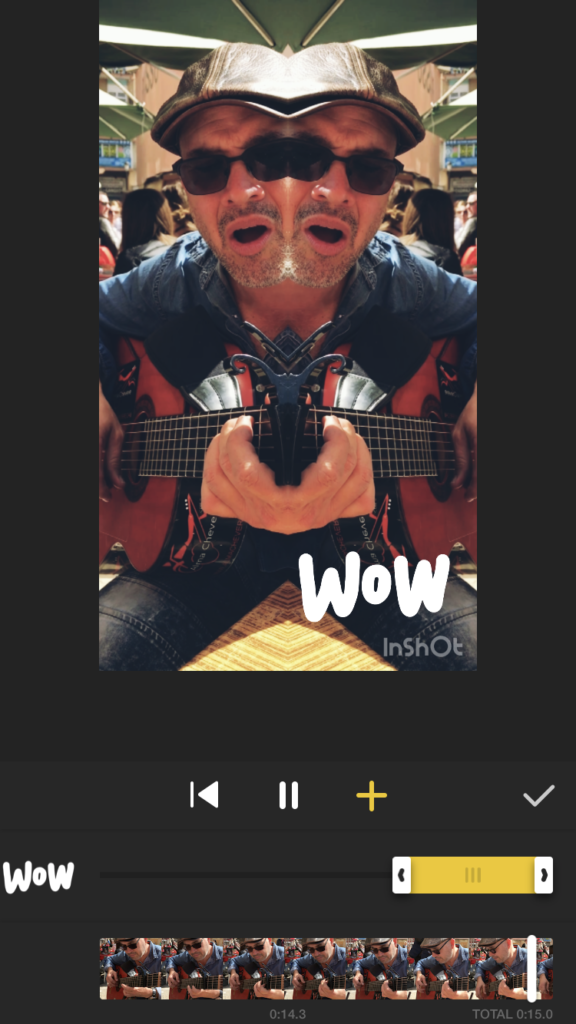
When starting out with Inshot use the 9:16 Canvas to get Instagram Story sized clips.
Download Inshot for Android or iPhone.
How much?
You can use Inshot for free but it comes with ads, a watermark and limited filters. Get the pro version for €2.99 a month, €9.99 a year or for a one time purchase of €32.99
3. Mug Life
Mug Life is guaranteed to catch your viewers eye. By adding facial expressions to a still image you get that ‘uncanny valley’ effect.
The free version of the app lets you manipulate any image including a face into a Meme. It’s incredible how it isolates features and stretches them to match a phrase.
If you pay to upgrade, you can choose an emoji you want the face to represent. It really is a freaky effect.

How much?
The basic version of Mug Life is free, upgrading to ‘Creative mode’ costs €4.49 and is so worth it.
Mugshot is only available for iOS at the moment (sorry) but they say they are working on an Android version.
4. Flipagram
I hate you can’t clip your videos in Instagram stories. There’s always a bit at the end with me pulling a funny face I’d love to get rid of.
I’d also like to create fast-moving images and videos cut together within one clip. It could stop people tapping quickly on to the next snap (This is particularly useful for Instagram story ads).
Flipagram does all of this. You can top and tail your clips one second at a time. Speed them up. Slow them down. Add effects (although the text is rubbish). Cut together multiple images and videos into one clip.
I use this all the time for editing, it is the easiest multi-platform editing tool out there.
You can download Flipagram for iOS and Android here.
How much?
Flipagram is free for the basic version. Upgrade to lose the watermark for €2.29
5. Planoly
There are days when I leave the office with a story in mind. Then I forget, I totally forget to create it. You could set a reminder on your phone or you could use Planoly.
I’d been using Planoly for a while before I discovered the story scheduling. It lets you pre-plan your Instagram feed. You can drag-and-drop images to make sure it’s on brand and pretty.
But scheduling stories is its killer feature. I can upload my first story element on my laptop. When my head is full of work and has forgotten about Instagram altogether, it will send me a reminder and that first snap to post.
Even if it’s just a title card created in Easil, this will remind you to create once other work matters have invaded your mind.
How much?
Planoly also has scheduling for regular Instagram posts. It’s free to use but you are limited to images only and 30 uploads unless you upgrade for $7 a month.
6. Cutstory
Sometimes I don’t have time to pick up my phone, open Instagram and then worry about my 15 seconds running out. Instead, I open the camera app and shoot knowing I can upload it later.
Last weekend a busker sat at our table and played us a song. I wanted to capture this moment and share it. Of course, the song was longer than 15 seconds. So I filmed the entire thing and dropped it into the Cutstory app.
Cutstory, snips videos into 15-second clips you can upload, one at a time to your story. It let me share the whole performance.
You could also use it to share a snippet from your YouTube video encouraging people to visit your channel to watch the whole thing.
7. Animatron Wave
This is the Rolls Royce of Instagram Story tools. If you want to create more professional looking videos, this is for you.
Animatron Wave [affiliate link] is a premium web-based tool and it’s feature rich.
You can start with their pre-designed templates or you can create your own.
There’s an Instagram story template built in, yay! After choosing the template use their stock videos (Many are free but you’ll need to pay to license some prettier one) or upload your own.
Next add animated text overlays, music and you’ll get a slick video. I created just one stock video element and a text overlay and the result looked pretty professional. (You’ll see it on my pinned tools story).
How much?
Wave is a subscription service starting at $39 a month. You get a 10% discount if you use my link to purchase. [Affiliate link].
Are you tooling up?
What tools do you use for Instagram stories? Are you a purist relying on the inbuilt tools or do you like to have fun with apps?
I’d love to know how you get on with these tools. I’d also love to hear your recommendations so I can add them to my list.
Get a headstart on Google Analytics 4 & understand the lingo with the GA4 phrase book