Black Friday is one of the biggest opportunities of the year for small business marketers and solopreneurs. But how do you know if all the time and effort you’ve poured into your campaign is actually paying off? That’s where Google Analytics 4 (GA4) comes in.
In this post, we’ll walk through how to set up GA4 to measure your Black Friday campaign (or any campaign), from setting clear goals to tracking what’s working best. By the end, you’ll have actionable steps to understand your results and optimise for future success.
1. Start with Clear Campaign Goals
Imagine a footballer wandering around the pitch, kicking the ball aimlessly. No one scores, no one wins – all because there are no goals. Your marketing campaign is the same: without goals, you’re just guessing at what is working.
Here’s how to set your goals:
Ask the big question: How much do you actually need to sell during Black Friday? You can set tiered goals to help you stay motivated.
More on setting up tiered goals here.
Break it down: Identify the specific actions you want your audience to take. In most cases that’s going to be purchases but other goals might include:
- Add to carts
- Views of specific pages
- Newsletter sign-ups.
- Downloads of a lead magnet.
Once you’ve nailed down your goals, it’s time to make sure you can track them effectively.
2. Set Up Key Events in Google Analytics 4
Now that you’ve decided on your goals, you need to measure whether they’re being achieved.
In GA4, what used to be called “Goals” in Universal Analytics are now “Key Events.”
How to check your custom events and key events are set up and tracking:
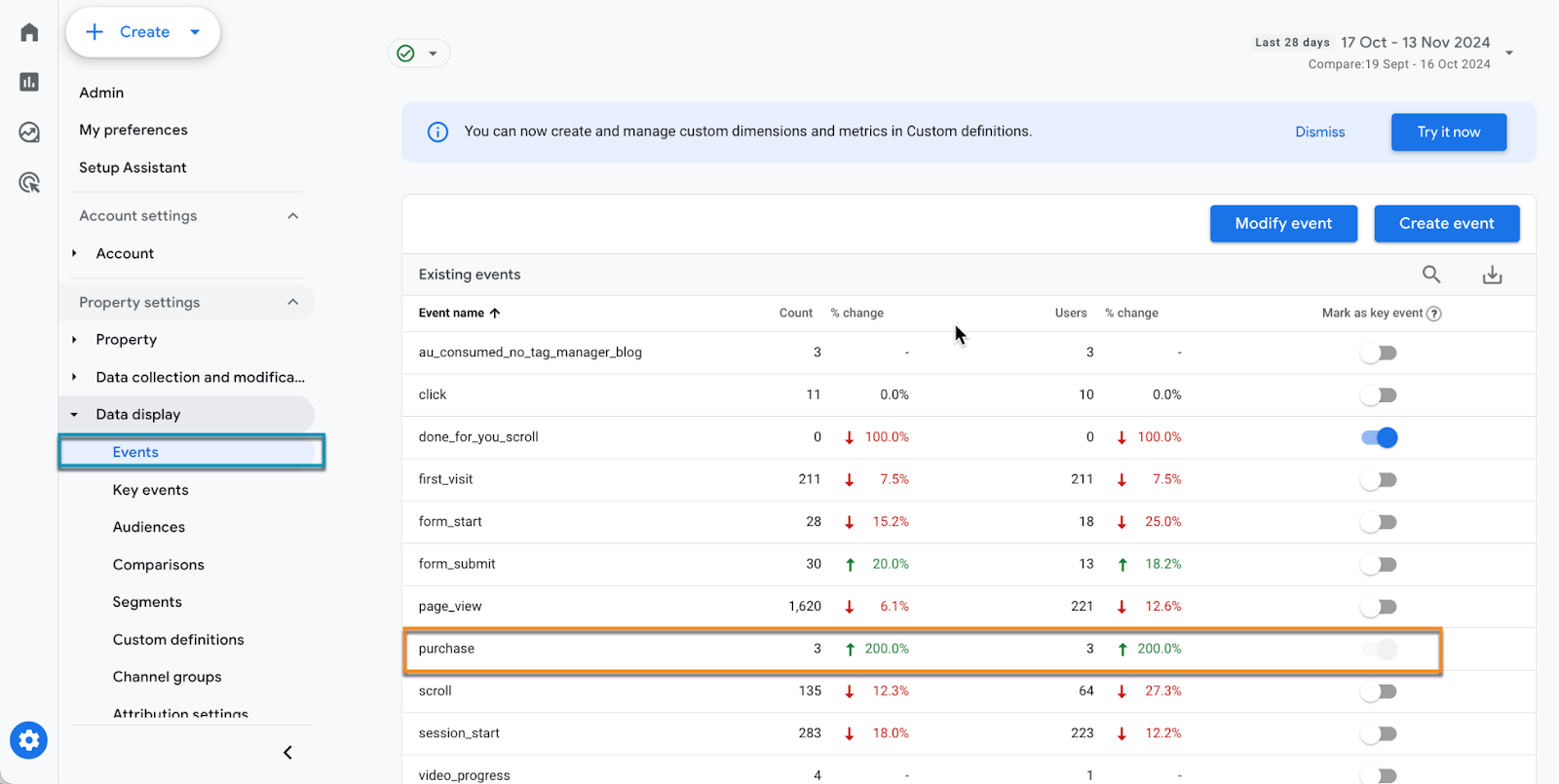
- Go to your GA4 Admin panel (click the gear icon in the bottom left corner).
- Navigate to “Events” and “Key Events.”
- Check that essential events like purchase, scroll, or custom events from your e-commerce platform are tracking. If they are you’ll see a number under the ‘count’ column.
- For key events, like ‘purchase’ or ‘lead’ make sure they are toggled on under ‘Mark as key event’ (not purchase is always automatically switched on)
If you use tools like Thrivecart, Payhip, Shopify or WooCommerce, ensure they’re sending data back to your GA4 account.
For example, every time someone buys a course from me on Payhip, the system automatically tracks that purchase.
3. Ensure You’re Reaching the Right Audience
It’s all very well driving traffic to your sales page, but unless those visitors are the right people, they won’t convert.
How to find out are the right people visiting your sales pages:
To do this we’re going to edit a standard ‘Pages and Screens’ report.
From your Analytics home page click into ‘Reports’
Find your ‘Pages and Screens’ report. It will appear either under Lifecycle/Engagement or Business Objectives/Traffic
Click the blue cross next to ‘Page path and screen class’
You can now add a secondary dimension like country or language.
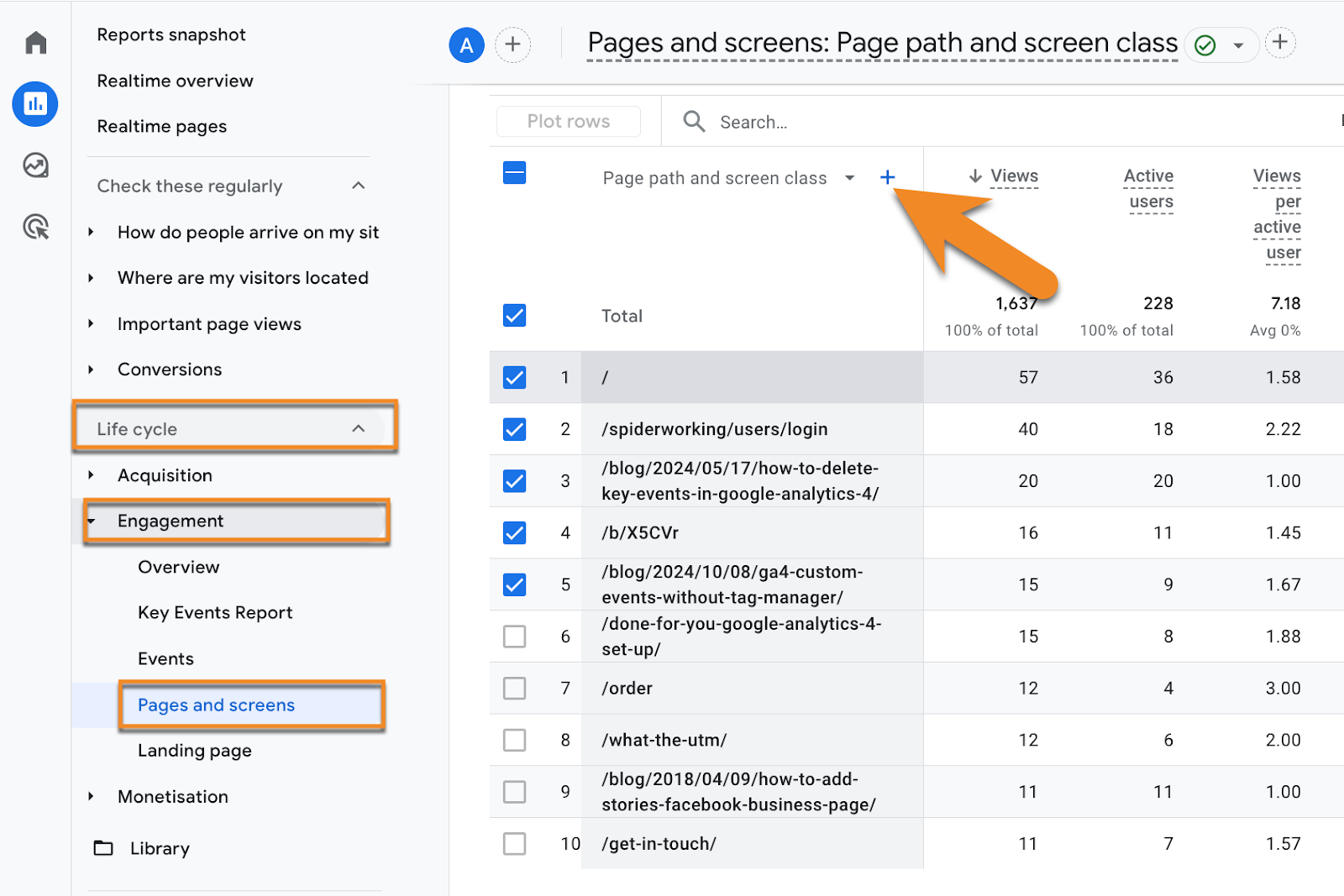
Now you can see all the pages on your website and where people who visit your website come from. But what about information on just your Black Friday sales page?
To temporarily filter this report to just a specific page, start typing the page path (that’s the bit that comes after your domain name) into the search bar above your dimensions.
In the example below I’m searching for my sales page for Analytics Day. The link to the page is spiderworking.com/analyticsday which means the page path is /analyticsday/
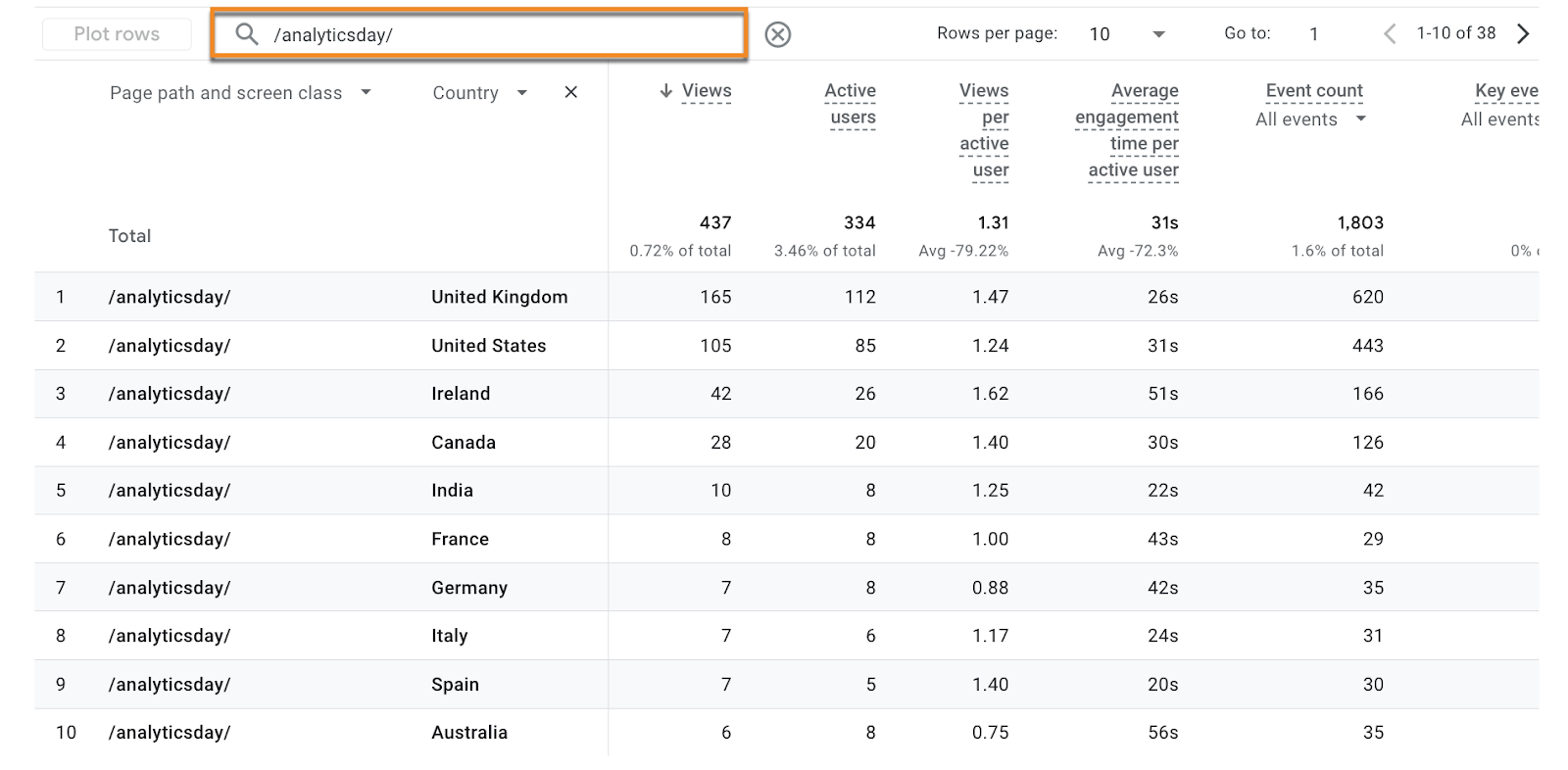
For example, I often target Ireland, the UK, and the US. By filtering my data, I can check if my visitors are actually from those countries. This kind of insight ensures that you’re not wasting your marketing budget on the wrong audience.
4. Track Campaign Effectiveness with UTM Links
If you’re running multiple campaigns across ads, social media, and email, how do you know which one is delivering the best results? The answer lies in UTM tracking.
Think of a tracking link like a letter in the post. Your website is the address, but adding UTM parameters is like including the sender’s address – it tells you exactly where the link came from.
Here’s what you need to add to your UTM link:
- Source: Where the traffic comes from (e.g., facebook, instagram).
- Medium: The type of traffic (e.g., social, email).
- Campaign: Your custom identifier (e.g., instagram bio or instagram story).
- Content: This is where you can enter black friday, this will make it easier to filter your reports to just that project later.
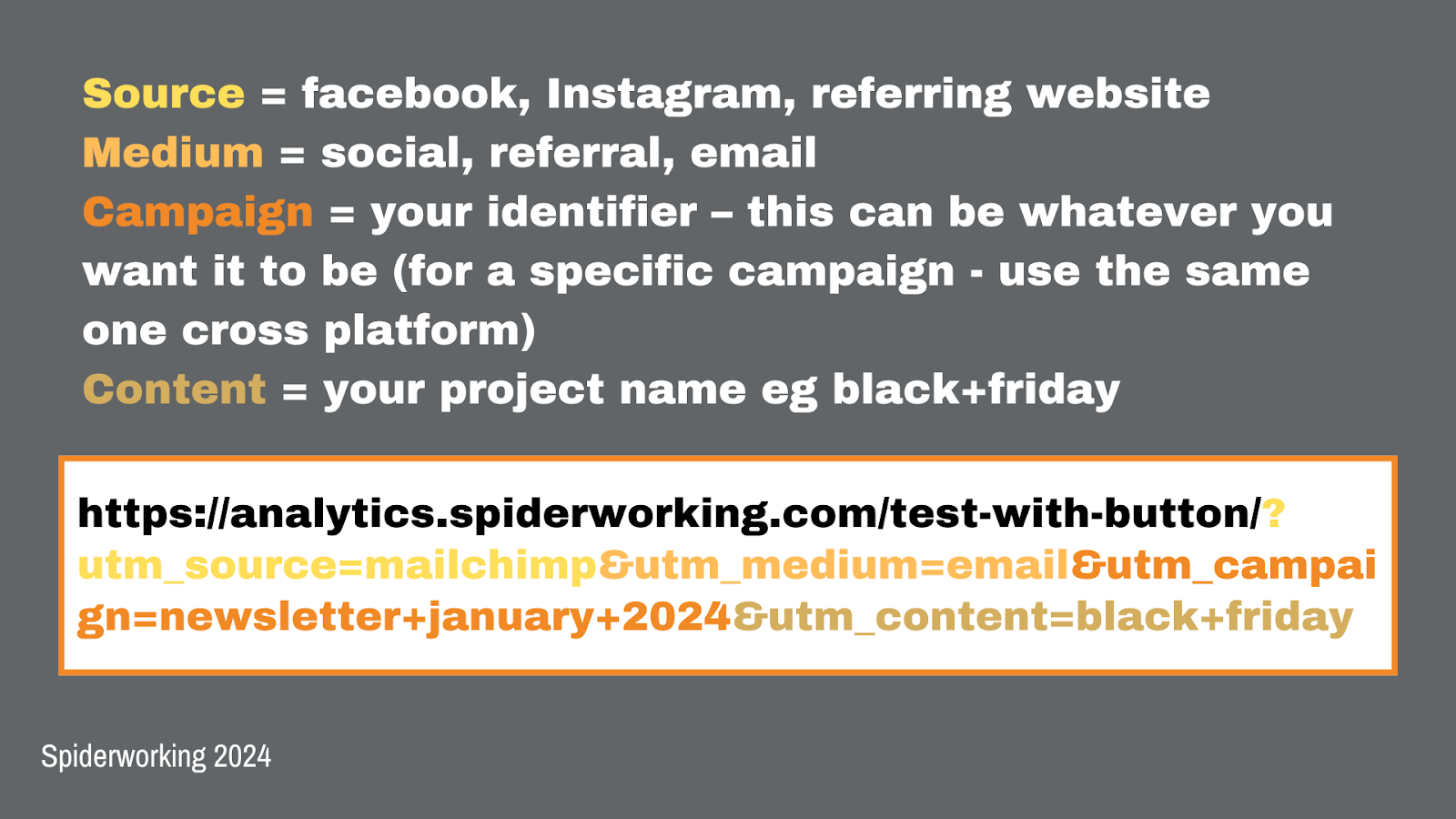
That link at the end can look kinda of intimidating. And it could be complicated to crete if you are trying to do it from scratch.
But I’ve got you covered. I’ve created a downloadable Google Sheet link maker that simplifies the process. Grab your copy here. (Watch the video at the top of this post to see how it works)
Learn how to use UTM links in less than an hour for less than a tenner here.
5. Customise Your Reports for Campaign Insights
Standard GA4 reports are great, but they don’t always show the full picture. By customising a report, you can focus on exactly what matters: your Black Friday campaigns.
Let’s create a custom report for your Black Friday UTM links.
How to Create a Custom Report:
Go to the Library section in GA4.
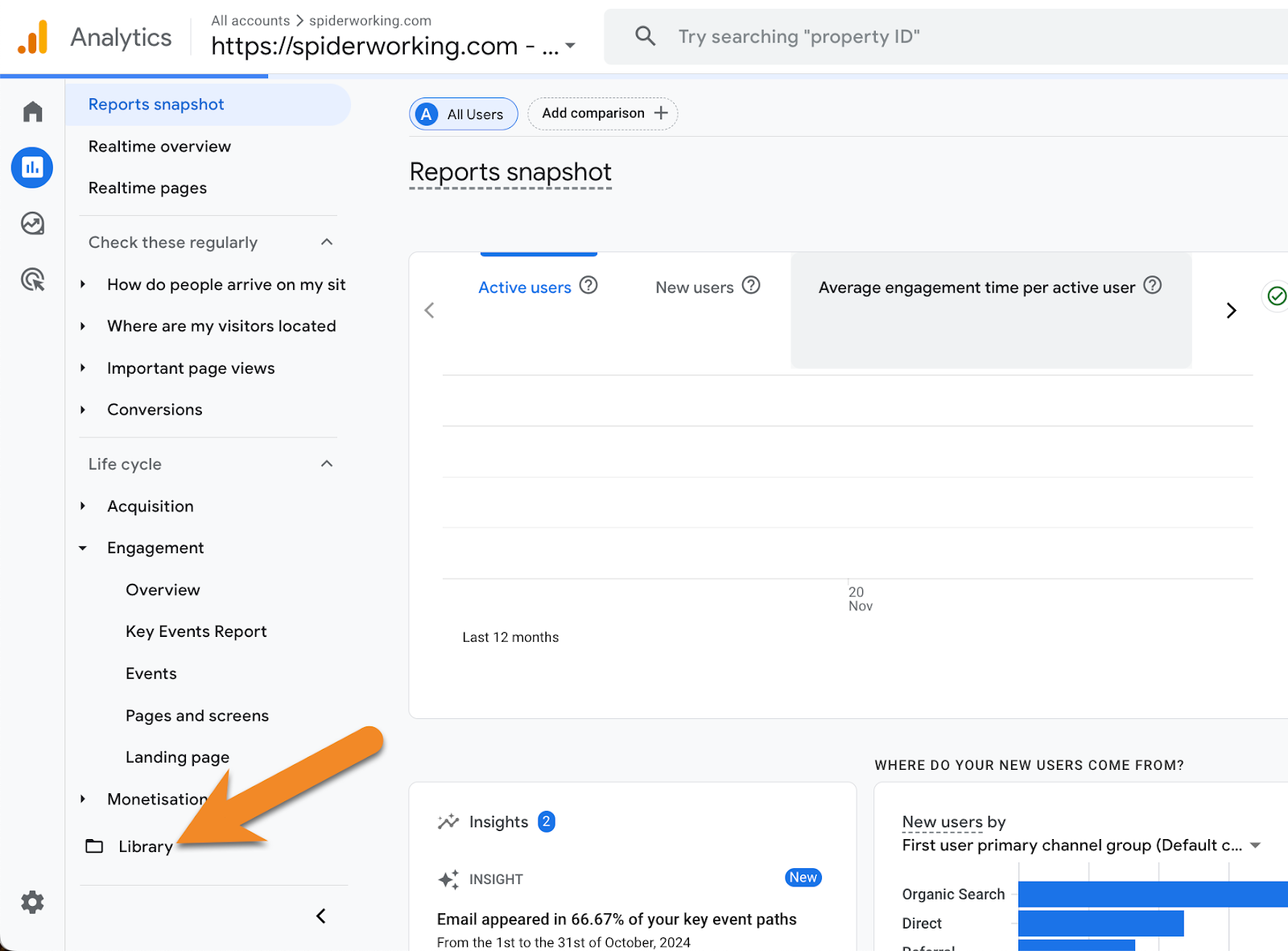
Click Create New/Create detail report to create a new custom report.
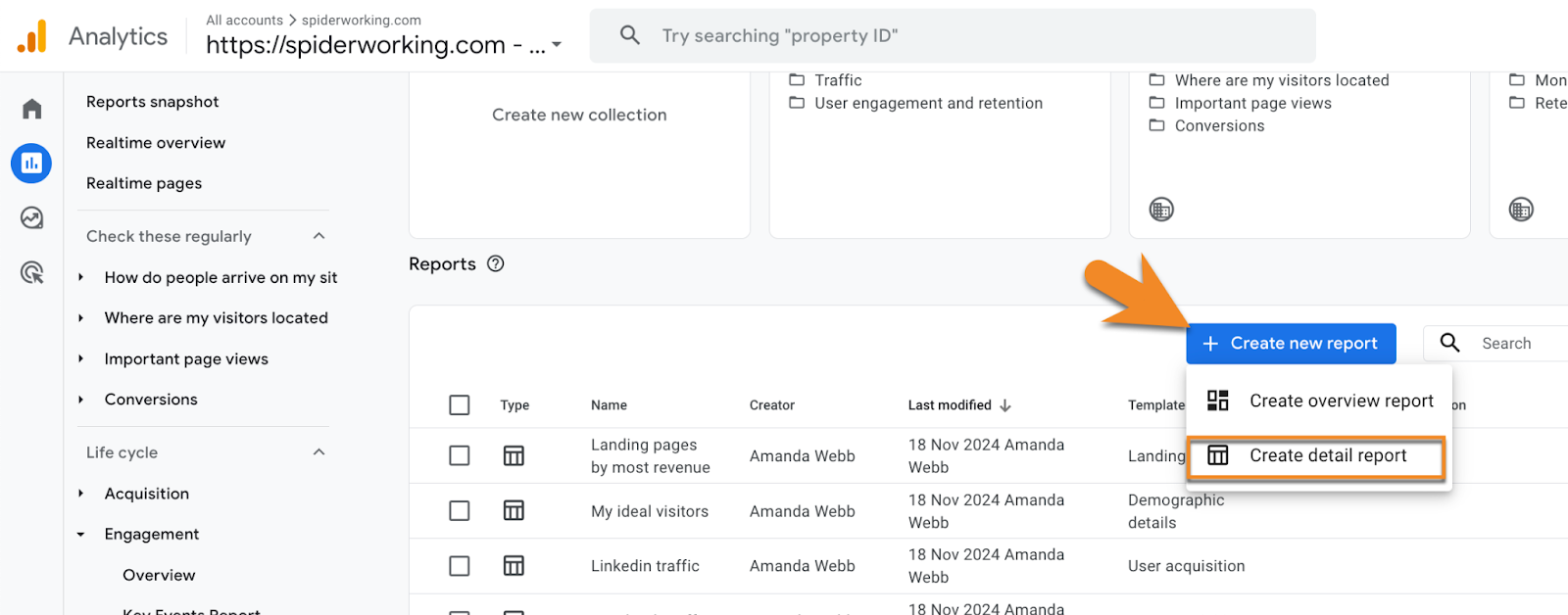
Choose User Acquisition as the report template.
Now we can start customising.
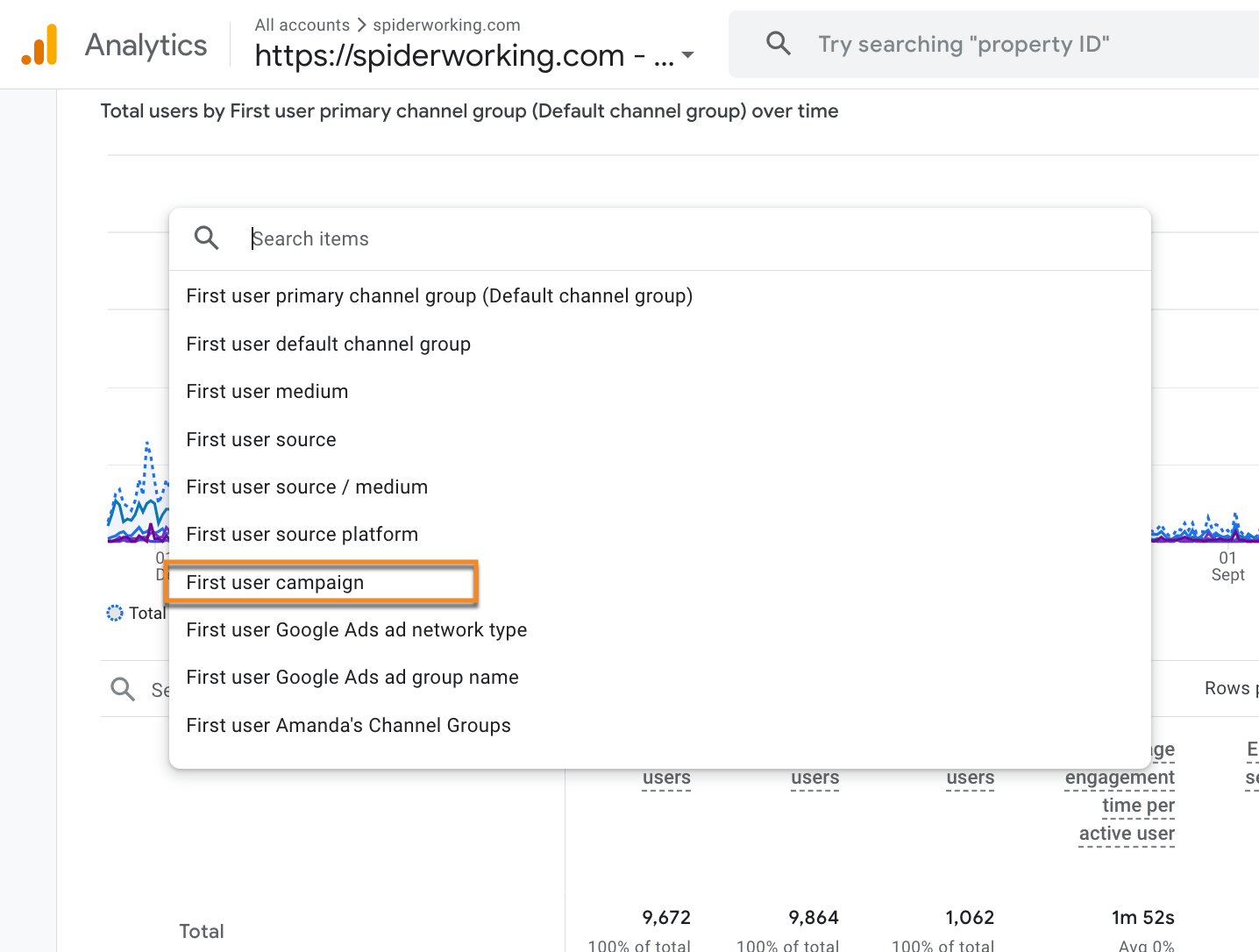
Click on the first column header Change the dimension to First user campaign
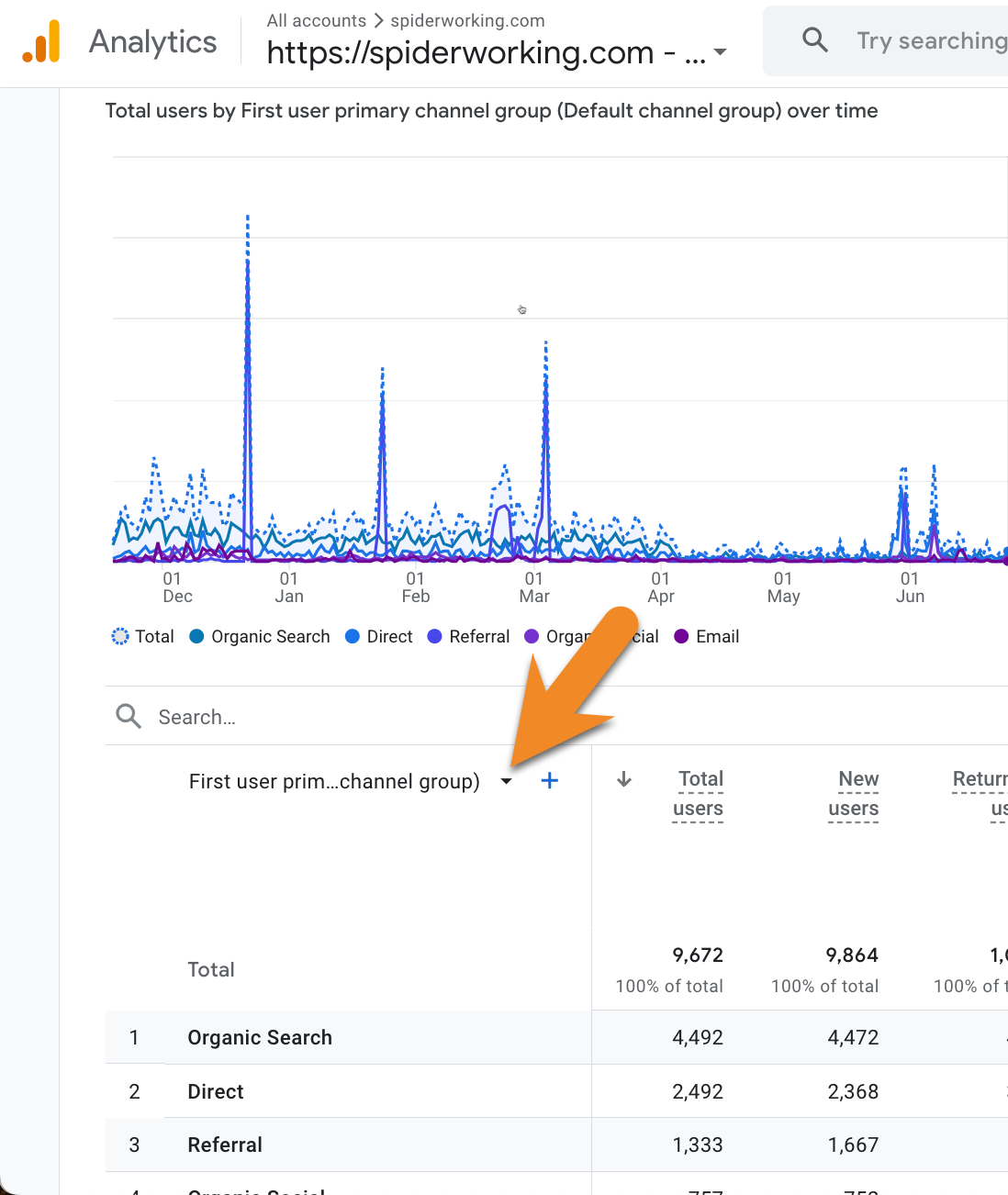
Change the dimension to First user campaign
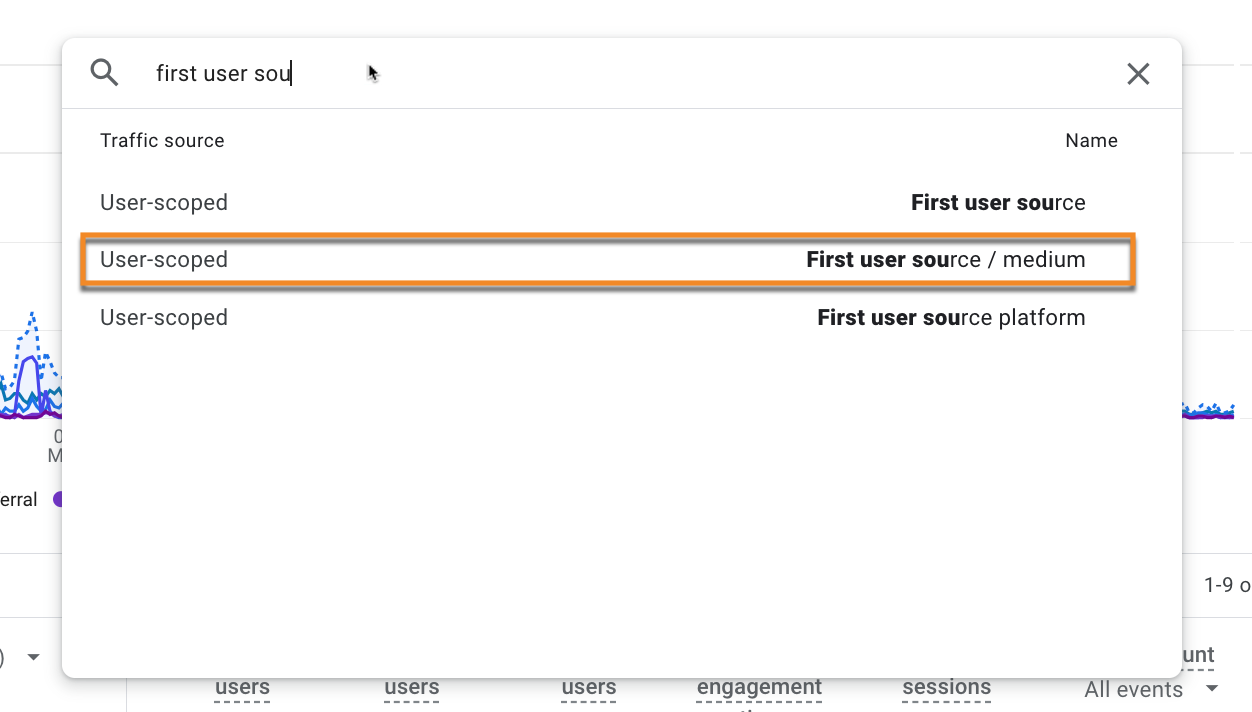
Click the + button to the right-hand side of this first dimension and add First user source/medium
Now to filter the report to just the Black Friday project.
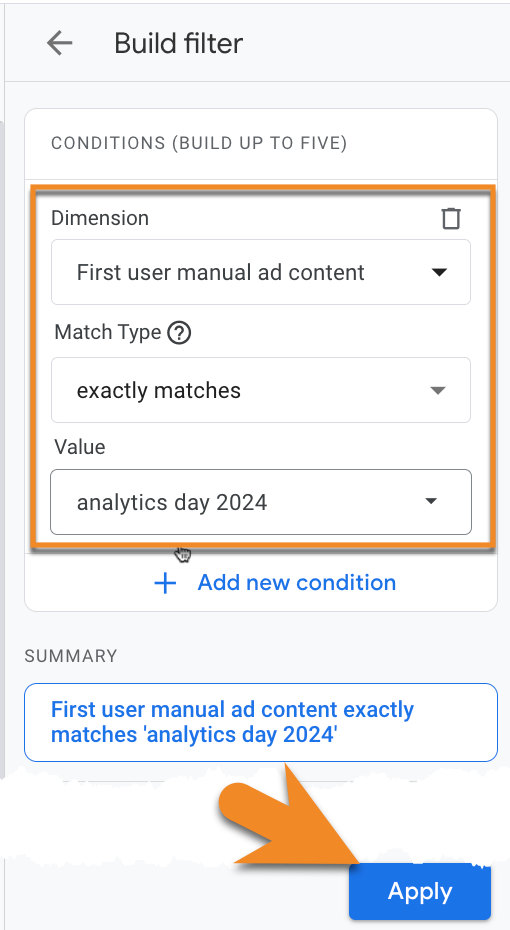
Click the Add filter button on the right-hand side.
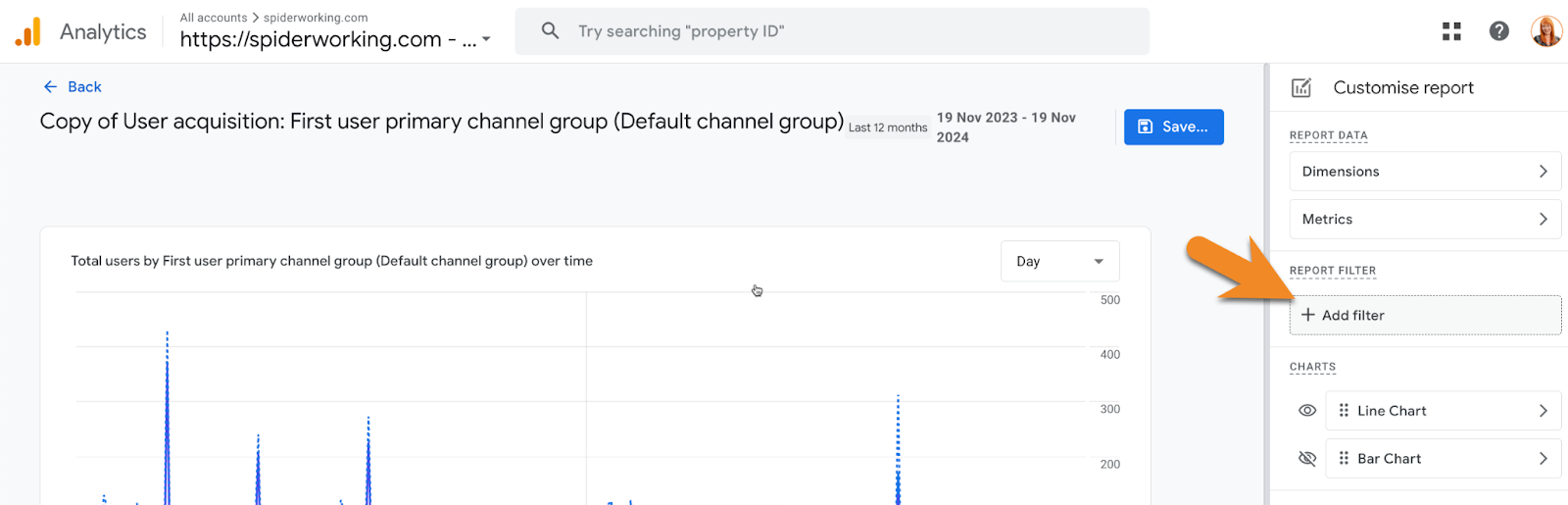
Under Select dimension choose First user manual ad content, this relates to the ‘content’ field in your UTM links.
For Match type choose Exactly matches and choose black friday (or in my example I’ve used analytics day 2024) from the drop-down menu.
Click Apply and your report will show you data about your Black Friday campaigns only.
Note: this only shows data from UTM links you have created and shared, it won’t show you traffic from referrals that haven’t included a UTM link.
This tailored view will show you which specific channels, dates, or even social posts drove the most traffic and conversions.
6. Adding Engagement Metrics
It’s not just about getting traffic – it’s about what visitors do once they’re on your site. Engagement metrics give you vital clues about whether your page is compelling enough to convert visitors into customers.
Metrics to Watch:
- Engagement rate: The percentage of visitors actively interacting with your page.
- Average engagement time: How long people are spending on your site.
- Scroll depth: Are visitors making it to the bottom of your page?
For example, if your page has a low scroll depth, it might indicate your messaging or design isn’t working. These insights can help you tweak and improve your sales page on the fly.
Want more tips like this plus a splash of fun and inspiration?
Sign up for my daily emails here.
Conclusion
Black Friday campaigns can be intense, but with the right setup in Google Analytics 4, you’ll have all the data you need to measure success. From setting clear goals to tracking audience behaviour and analysing campaign effectiveness, every step brings you closer to optimising your results.
If you’re ready to take the next step, take my What The UTM mini-course. You’ll nail UTM tracking in less than an hour for less than a tenner