When I’m blogging at home it’s easy for me to screen cap and annotate my images. I have GIMP for editing and ‘Grab’ the inbuilt mac screen cap software for getting the grabs. When I’m out and about with my netbook it can be more tricky so I’m always looking for a quick and easy tool to help me out. This weeks cool tool Skitch not only gets the screen grabs – and you can choose to grab just the bit of the screen you need – it also allows you to add annotations in the form of arrows, text circles and more. I’m totally hooked, I’ve downloaded it for Mac, for Windows on my netbook and the iPhone app too.
It’s owned by Evernote, an app I’m still to try but this could well be the gateway app that pushes me over the edge, I’m sure you’ll see my review of Evernote pop up here soon.
Here’s how Skitch Works
Visit the website and download the version that is compatible for your computer, I’m using Skitch for Mac (1.0) and Skitch for iOS for this demonstration but it’s also available on Android, Windows 8, Windows or Mac.
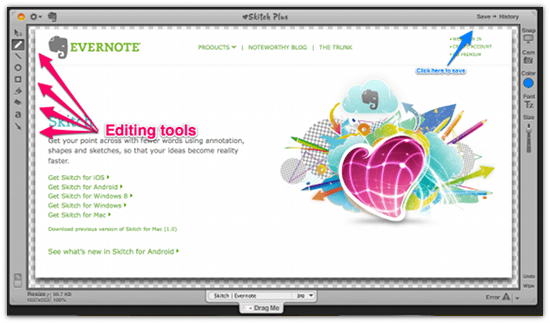
Depending on the version you have downloaded my screen shot above may or may not make sense.
- You will be prompted to take a screen grab, select the area of the screen you want to grab by clicking and dragging the cross hairs across your screen.
- The simple editing tools on the left hand toolbar allow you to circle stuff, point arrows at stuff and add text to stuff within your screen grab.
- Once you are done simply click the save button at the top of the screen (see blue arrow) this will save your image within the application.
- On the Windows version there is also a button that will save the image to the hard drive of you computer. On the mac version you will need to click ‘File/Export’ on the menu bar to do this.
Here’s one I made earlier

On the iPhone app you have the option of working on a picture from your photo library as well as screen grabbing. It’s even easier to use than the PC and Mac versions and I can see me abusing lots of cat pictures this way in the future (see below).
Once you’ve finished editing simply click the arrow inside the square at the top right hand side of the screen to save to your photo library.

I discovered this app via this article on the HubSpot blog, there’s lots of other handy ones in there too.
If you enjoy reading my blog please nominate it for the Social Media Examiner Top 10 Social Media Blogs. Last year I reached the finals but I’ve been working hard all year long to make it better. I would be over the moon to make it in to the top 1o this year. To reach the judging stage I need to get a lot of nominations so please nominate www.spiderworking.com by visiting this post and leaving a comment including the link and why you think I should win.